Books › Edit Like a Director › Learn Video Editing Step By Step
Learn Video Editing Step By Step in United Kingdom
Learn video editing step by step is one of the topics Yurian Barter covers in "Edit Like a Director". Below are the 3 chapters that matter most for it, with a real excerpt from each, so you can start applying it in United Kingdom today.
Editing Is Not the Same as Assembling · Chapter 2
There's a question I ask on the first day of class, and almost nobody answers it right: "What's the difference between editing and assembling?" Almost everyone says, "It's the same thing." And almost everyone is wrong.
In this chapter: Editing: the carpenter's job · Assembling: the storyteller's job · The same footage, two different stories · Edit first, then assemble
Assembling: the storyteller's job
Assembling is something else. It's deciding how the story gets told.
Do you tell it in order, the way it happened? Do you start at the end and work backward? Do you show two things happening at the same time in different places and alternate between them? That's assembly.
There are three types of assembly you'll learn in this book:
- Linear (also called chronological or narrative): the story is told in the same order the events happen.
- Parallel: two actions that happen at the same time in different places, intercut.
- Flashback: the story travels to the past to explain the present.
Read the full guide to "Editing Is Not the Same as Assembling" →
Open Premiere Without Fear · Chapter 6
The first time you open Premiere Pro, it feels like they shoved you into an airplane cockpit. Panels everywhere. Buttons with weird symbols. Colored lines. Breathe. All of it has a logic, and in this chapter you're going to understand it.
In this chapter: Where to Install It and How to Get It · Workspaces · Your First Step: Import · Source Monitor and Program Monitor: Don't Mix Them Up · The Moment the Sequence Is Born · A Mistake Everyone Makes Once
Your First Step: Import
In an editing program you always start the same way: you bring in your materials. Videos, photos, music.
In the Project panel (usually at the bottom left) you'll see a message: "Import media to start." You have two ways to do it:
- Double-click that empty space and choose your files.
- Drag them from a folder on your computer into the panel.
They're in. And notice something important: they weren't copied. Premiere only links to them. If you later move or delete the original folder, the program will show them as "offline" and you'll have to locate them again. Keep your files in a tidy folder, and don't move it.
Read the full guide to "Open Premiere Without Fear" →
Animate Your Video: Keyframes in Premiere · Chapter 14
So far you've been cutting and organizing. Now you're going to animate. And it's simpler than you think: almost everything comes down to one trick with two points.
In this chapter: Effect Controls · The Stopwatch: Your First Keyframe · Diamond or Hourglass · Digital Zoom, the Most Useful Effect · Classic Exercise: Five Copies, Five Properties · One Step Further
Digital Zoom, the Most Useful Effect
The trick I use the most in interviews and class videos: the digital zoom.
It's a push-in (or pull-out) done with the Scale property. First keyframe at 100, and another one further along at 110, for example. Between the two, the video slowly moves closer and brings a static shot to life.
A linear movement from start to finish is enough: it looks natural. But be very careful with two things:
- Don't overdo it. A big zoom looks artificial.
- Watch the quality. If the original video doesn't have much resolution, it looks blurry when you enlarge it. Keep it subtle and short.
Read the full guide to "Animate Your Video: Keyframes in Premiere" →
Your challenge for today
Take the three videos from the previous chapter and write one sentence for each on a sheet of paper: "I want whoever watches this to feel ______." Just one sentence. Then keep it. You'll need it in Chapter 11.
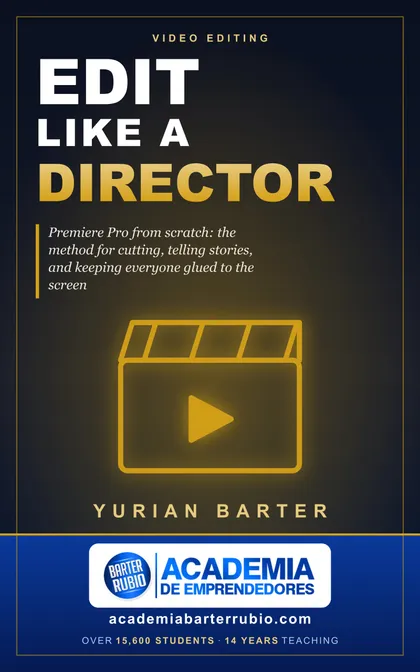
Read the whole book
"Edit Like a Director" in PDF: 17 chapters, each with a challenge. $8.99, delivered to your email (charged in USD; your bank converts it to pounds).
Get the PDF · $8.99Or learn it free, with a certificate
Start the free Video Editing and Content Creation course in the Barter AI Academy app: short lessons, practice with an AI tutor and a certificate when you finish.
Start the free courseSee the free Video Editing and Content Creation course in United Kingdom →
Frequently asked questions
Is there a book about learn video editing step by step?
Yes. "Edit Like a Director" by Yurian Barter covers it in chapters 2, 6, 14. It is available in PDF for $8.99 and arrives by email.
Can I buy it from United Kingdom?
Yes. You pay $8.99 USD with PayPal or a debit or credit card; your bank converts the amount to pounds. The PDF is delivered to your email right after the payment.
Is there a free way to learn learn video editing step by step?
Yes. The Barter AI Academy app has a free Video Editing and Content Creation course with a certificate. The book is the deeper, step-by-step version.
More guides from "Edit Like a Director"
Video Editing Book PDF · Premiere Pro for Beginners · Premiere Pro Shortcuts · Types of Camera Shots · Video Editing for Beginners · Continuity Editing · Pacing in Video Editing · Keyframes in Premiere Pro · How to Write a Video Script · How to Clean Audio in Premiere Pro · Sound Design for Video · 180 Degree Rule in Editing · Film Editing Techniques · Composition in Video
More books by Yurian Barter
You Are the Machine · Move the World · Mix Like a Producer · Ads That Sell · Google Finds You · Sell Without Pressure · Let Them Find You