Books › Move the World › Motion Design for Beginners
Motion Design for Beginners in India
Readers in India looking for motion design for beginners usually want something practical, not theory. These 3 chapters of "Move the World" go straight to the point: read the excerpts, try the challenge and decide if you want the whole book.
The Composition: Your Stage · Chapter 1
Before you move anything, you need a stage. In After Effects, that stage is called a composition.
In this chapter: What is a composition? · Frames per second, made easy · Think in seconds, not minutes · Importing things · Two panels to start paying attention to
What is a composition?
Remember the concept of framing: the rectangle that limits what you see. A composition is exactly that, plus everything you put inside it: videos, images, text, shapes, lights.
When you create one, the program asks you for:
- Name. Make it a clear one. "Intro_text" will help you more than "Comp 1."
- Size (width and height) and aspect ratio. For horizontal video, the usual is 1920 × 1080. For stories or vertical videos, 1080 × 1920.
- Frame rate (fps).
- Duration.
- Background color.
Got something wrong? No big deal: go to Composition → Composition Settings and change it whenever you want.
Read the full guide to "The Composition: Your Stage" →
Your First Composite Animation: "Hello World" · Chapter 6
Every programmer starts with a "Hello World." So do animators. We're going to make ours, and you're going to put everything you've learned to work.
In this chapter: What we're going to achieve · Step by step · What you learned without realizing it · Now, the goodbye · Two typical mistakes
Step by step
1. Create the text. With the Type tool, click in the composition and type "Hello World." Pick a clear typeface in the Character panel, and center the text with the Align panel.
2. Opacity. Select the layer and press T. Turn on the stopwatch at second 0 and set the value to 0%. Move forward one second and set it to 100%. Now it fades in gradually.
3. Blur. Go to the Effects & Presets panel and search for Gaussian Blur. Drag it onto the layer. In the effect, turn on the stopwatch for "Blurriness" at second 0 with a high value, for example 60. One second later, set it to 0. The text appears blurry and sharpens.
4. Glow. Search for the Glow effect and apply it. Raise the Glow Radius (in the class example, 100) so it's obvious. Animate the intensity if you want it to shine brighter at the end.
5. Smooth it out. Select all the keyframes and press F9 (Easy Ease). Everything becomes more organic.
6. Review. Play it back with the spacebar. Does it feel right? Adjust the timing: entrance animations almost always last less than you think.
Read the full guide to "Your First Composite Animation: "Hello World"" →
The Final Project: 10 Seconds That Bring It All Together · Chapter 21
Here's my proposal: a final exam. I won't be grading it. You will, by watching it through a viewer's eyes.
In this chapter: The Assignment · How to Organize Yourself · Review Like a Professional · Frame Rate, Once Again · From After Effects to Premiere · What Comes Next
The Assignment
Create a 10-second composition that meets these requirements:
- One text with an intro animation (entrance) and an outro animation (exit).
- Solids and shapes working together to give visual context: a gradient background, lines that draw themselves, a circle or a frame.
- At least two overlays: one texture (background) and one transition (lights, masks or flashes).
- Use blending modes to integrate them.
- Include at least one expression (wiggle) on a background or an element.
- Optional but recommended: a light and a 3D camera.
- The text must be effortless to read.
If you're going to use templates from your editing software, download your own light transitions: this exercise shows your command of After Effects, not of templates.
Read the full guide to "The Final Project: 10 Seconds That Bring It All Together" →
Your challenge for today
Create a composition of 1920 × 1080, 30 fps, 10 seconds, dark background. Give it a name. Then go to Composition → Composition Settings and change it to 60 fps and 5 seconds. Set it back to how it was. When changing those parameters feels normal, you're no longer afraid of them.
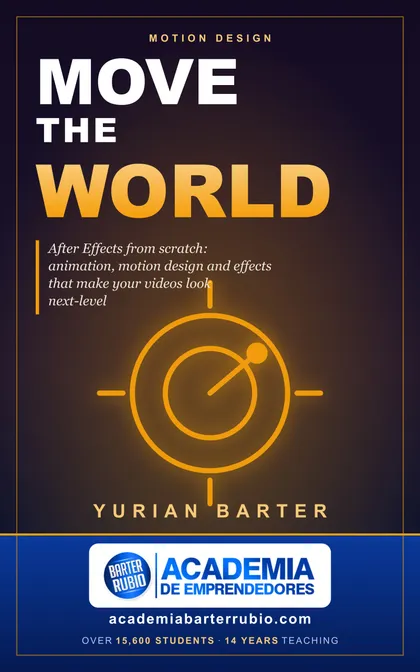
Read the whole book
"Move the World" in PDF: 21 chapters, each with a challenge. $8.99, delivered to your email (charged in USD; your bank converts it to rupees).
Get the PDF · $8.99Or learn it free, with a certificate
Start the free Video Editing and Content Creation course in the Barter AI Academy app: short lessons, practice with an AI tutor and a certificate when you finish.
Start the free courseSee the free Video Editing and Content Creation course in India →
Frequently asked questions
Is there a book about motion design for beginners?
Yes. "Move the World" by Yurian Barter covers it in chapters 1, 6, 21. It is available in PDF for $8.99 and arrives by email.
Can I buy it from India?
Yes. You pay $8.99 USD with PayPal or a debit or credit card; your bank converts the amount to rupees. The PDF is delivered to your email right after the payment.
Is there a free way to learn motion design for beginners?
Yes. The Barter AI Academy app has a free Video Editing and Content Creation course with a certificate. The book is the deeper, step-by-step version.
More guides from "Move the World"
After Effects Book PDF · After Effects for Beginners · After Effects Shortcuts · Keyframe Animation in After Effects · Null Object in After Effects · Text Animation in After Effects · Blend Modes in After Effects · Shape Layers in After Effects · Wiggle Expression After Effects · Rotoscoping and Chroma Key · 3D Camera in After Effects · Speed Graph and Easy Ease · Camera Tracking in After Effects · Premiere Pro and After Effects Workflow
More books by Yurian Barter
You Are the Machine · Edit Like a Director · Mix Like a Producer · Ads That Sell · Google Finds You · Sell Without Pressure · Let Them Find You