Practical Manual · In New Zealand

Learn Computing from Scratch in Palmerston North: Practical PDF Manual

If you are in Palmerston North and want to learn computing from scratch at your own pace, this practical manual guides you chapter by chapter: lose the fear of the computer: turn it on, use the mouse and keyboard, save files, and browse the internet.
Buy the manual · 7.99 USD

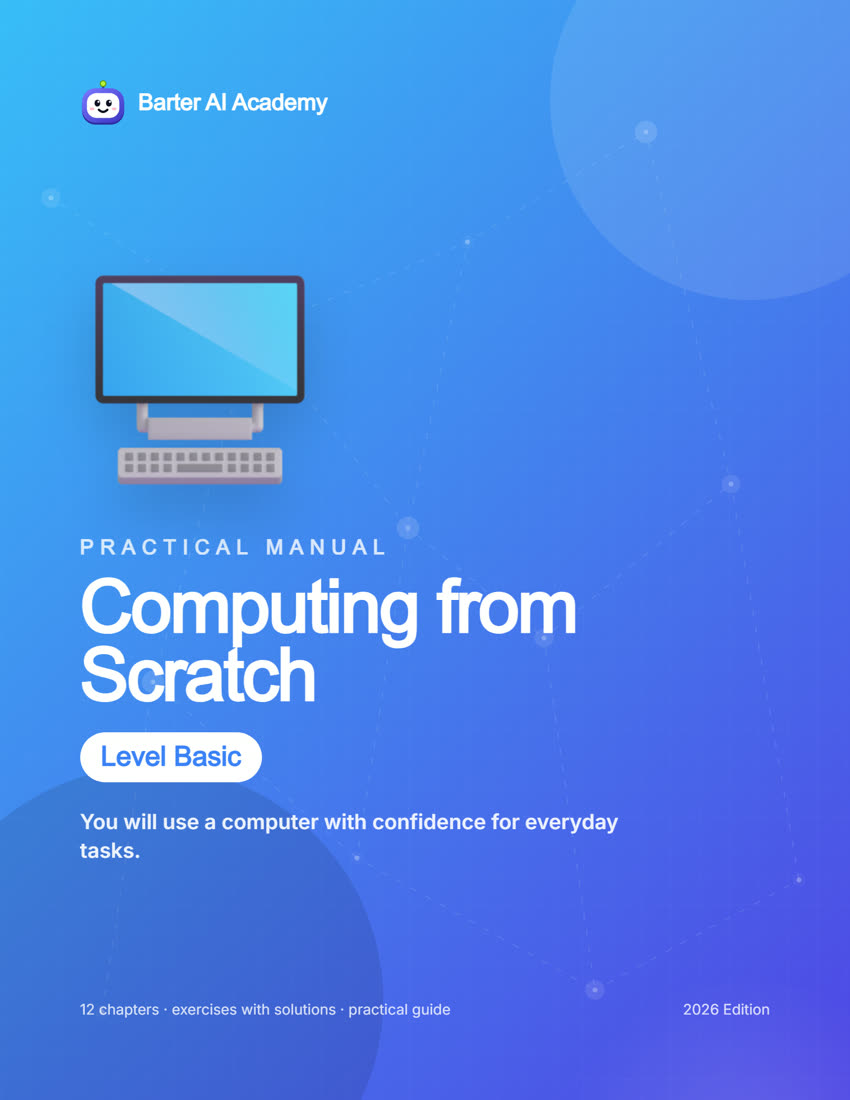
Computing from Scratch Manual · Basic Level (PDF)

Everything is online: download it in seconds from Palmerston North and pay in US dollars with PayPal or card.

Free sample

Chapter 2: Turning On, Shutting Down, and Restarting

🎯 Turn on, shut down, and restart a Windows computer correctly and safely, and know when to use each option.

Three actions you will use every day. Doing them right takes care of your computer and your work.

Key ideas

  • A short press is usually enough. Holding the button down is reserved as a last resort when the computer is not responding. If nothing happens after a few seconds, check the power or press again.
  • The Start menu lets Windows close everything in an orderly way and protect your files. Closing a program or signing out does not turn off the computer.
  • Restarting closes and reloads the system, which often fixes slowness and completes updates.
  • First you protect your work, then you close everything, and finally you give the command to shut down.

What's inside

Part 1 · First Steps

  1. 01Computer PartsRecognize and name the main parts of a computer (monitor, tower, keyboard, and mouse), explain what each one does, and know how they connect to each other.
  2. 02Turning On, Shutting Down, and RestartingTurn on, shut down, and restart a Windows computer correctly and safely, and know when to use each option.
  3. 03Using the Mouse Without FearMove the mouse with control and safely use the left click, right click, double click, drag, and scroll wheel.
  4. 04The keyboard and its key keysRecognize the keyboard's zones and safely use the key keys (Enter, Space, Backspace, Shift, Caps Lock, Tab, Esc, and Delete) to type and correct text.

Part 2 · Files and Folders

  1. 05The Desktop and WindowsRecognize the parts of the Windows desktop and open, move, minimize, maximize, and close windows safely.
  2. 06Creating and Naming FoldersCreate folders in Windows, give them clear names, and organize them into subfolders so you can find your files quickly.
  3. 07Copy, Move, and Delete FilesCopy, move, and delete files safely on Windows, and restore a file from the Recycle Bin if you make a mistake.
  4. 08USB Drives and DownloadsConnect a USB drive, copy files to it, eject it safely, and find and manage the files you download from the internet.

Part 3 · Internet

  1. 09What Is the Internet and the BrowserExplain in your own words what the internet is, tell it apart from the browser, and use the address bar, tabs, and basic buttons to visit a page.
  2. 10Searching Well on GoogleSearch for information on Google using well-chosen keywords, understand the results, and recognize ads, government website addresses, and trustworthy sources.
  3. 11Create and Use Your EmailCreate your own email account, understand its parts, and send and reply to a message with basic security.
  4. 12Basic Security: Passwords and ScamsCreate strong passwords, recognize misleading emails and messages, and apply basic habits to protect your account and your data.

Buy the manual · 7.99 USD

Practice it for free in the app

This manual has an interactive version in Barter AI Academy: lessons with challenges, an AI tutor that answers you 24/7, and a certificate. The first 5 Computing from Scratch lessons are free.

Start for free →

Other cities in New Zealand

Other levels in your country

See all manuals →