Books › Move the World › Rotoscoping and Chroma Key
Rotoscoping and Chroma Key in Singapore
If you are searching for rotoscoping and chroma key in Singapore, this page gathers the parts of "Move the World" by Yurian Barter that deal with it directly: 3 chapters, with an excerpt from each and the challenge you can do today.
Rotoscoping, Masks and Chroma Key · Chapter 11
How do they make text appear behind a person who's talking? Or make a person look like they're somewhere else? With three techniques you're about to learn.
In this chapter: Masks · Rotoscoping · Sync it with what's being said · Chroma key: green screen · Motion tracking · You can combine several effects in a single shot
Masks
A mask is a cutout. With the Rectangle, Ellipse or Pen tool, you draw a shape on a selected layer, and that layer will only be visible inside that shape.
Masks have useful properties: Mask Path, Mask Feather (softens the edge), Mask Opacity and Mask Expansion. And you can animate them: the cutout moves, grows or changes shape.
Uses: showing only part of a video, making transitions with shapes, isolating an object.
Read the full guide to "Rotoscoping, Masks and Chroma Key" →
Solids, Anchor Points, and the Mask Trick · Chapter 13
There are three moments when almost everyone gets stuck in After Effects. They're not hard. Nobody just explains them.
In this chapter: The Solid · The Eye and the Lock · The Anchor Point: The Pivot · The Tricky Part: Mask or Shape Layer · Inside a Shape Layer
The Anchor Point: The Pivot
Every layer has an anchor point: the place from where it rotates, scales, and moves. By default it sits in the center. If you move it to a corner, the rotation will spin from that corner, like a door on its hinge.
To move it, use the Anchor Point tool (the icon with a cross and a square) or the Anchor Point property inside Transform.
Two shortcuts that save you some patience:
- Hold Ctrl while you drag it, and it snaps to the center and the corners.
- Ctrl + double-click on the tool places it right at the center of the layer.
Read the full guide to "Solids, Anchor Points, and the Mask Trick" →
Overlays and Blend Modes: The Makeup of Video · Chapter 8
Have you ever watched a video where a ray of light suddenly sweeps across and the scene changes? Or a background of particles drifting gently behind a title? Those are overlays.
In this chapter: What Is an Overlay · The Immediate Problem · Blend Modes: Color Math · Coloring an Overlay with a Solid · Where to Find Overlays · How to Use Them with Judgment
Blend Modes: Color Math
A blend mode is a rule that decides how a layer mixes with the ones below it. You'll find it in the "Mode" column of the timeline (sometimes you have to turn the column on with the Toggle Switches / Modes button).
The most useful ones to start with:
- Screen: removes black and lets only the light parts through. Ideal for overlays on a black background: rays, sparks, fire, smoke, particles.
- Add: adds the layer's light. It's similar to Screen but more intense.
- Multiply: darkens; removes white and keeps black. Useful for shadows, paper textures, stains.
- Invert: inverts the resulting colors. Useful for turning a white overlay into a dark one.
Rule of thumb: black background and you want it gone → Screen or Add. White background → Multiply.
If an image has a black background, for example "wings on a black background" or "fire on a black background," Screen makes the black transparent. So even if the program doesn't come with exactly what you imagine, you can search the internet for images with black backgrounds and use them with this trick. The limit is your imagination.
Read the full guide to "Overlays and Blend Modes: The Makeup of Video" →
Your challenge for today
Record a video of yourself talking in front of a plain wall. Do a basic rotoscope, duplicate the layer and put a big piece of text between the two that says the first thing you say. If you manage to make the text look like it's behind you, you've unlocked a superpower.
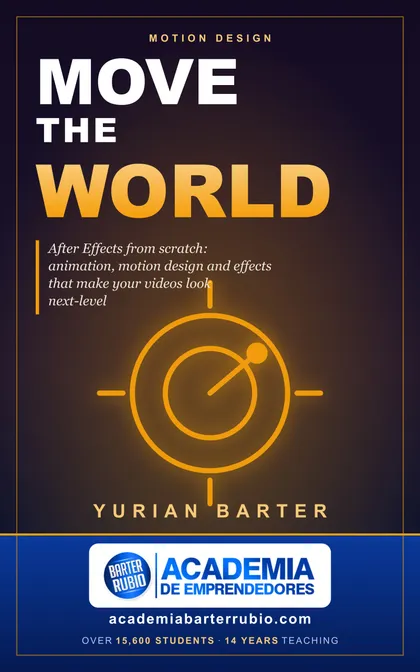
Read the whole book
"Move the World" in PDF: 21 chapters, each with a challenge. $8.99, delivered to your email (charged in USD; your bank converts it to Singapore dollars).
Get the PDF · $8.99Or learn it free, with a certificate
Start the free Video Editing and Content Creation course in the Barter AI Academy app: short lessons, practice with an AI tutor and a certificate when you finish.
Start the free courseSee the free Video Editing and Content Creation course in Singapore →
Frequently asked questions
Is there a book about rotoscoping and chroma key?
Yes. "Move the World" by Yurian Barter covers it in chapters 11, 13, 8. It is available in PDF for $8.99 and arrives by email.
Can I buy it from Singapore?
Yes. You pay $8.99 USD with PayPal or a debit or credit card; your bank converts the amount to Singapore dollars. The PDF is delivered to your email right after the payment.
Is there a free way to learn rotoscoping and chroma key?
Yes. The Barter AI Academy app has a free Video Editing and Content Creation course with a certificate. The book is the deeper, step-by-step version.
More guides from "Move the World"
After Effects Book PDF · After Effects for Beginners · After Effects Shortcuts · Keyframe Animation in After Effects · Null Object in After Effects · Text Animation in After Effects · Blend Modes in After Effects · Shape Layers in After Effects · Wiggle Expression After Effects · 3D Camera in After Effects · Speed Graph and Easy Ease · Camera Tracking in After Effects · Motion Design for Beginners · Premiere Pro and After Effects Workflow
More books by Yurian Barter
You Are the Machine · Edit Like a Director · Mix Like a Producer · Ads That Sell · Google Finds You · Sell Without Pressure · Let Them Find You