Books › Move the World › After Effects for Beginners
After Effects for Beginners in United States
Readers in United States looking for After Effects for beginners usually want something practical, not theory. These 3 chapters of "Move the World" go straight to the point: read the excerpts, try the challenge and decide if you want the whole book.
The Composition: Your Stage · Chapter 1
Before you move anything, you need a stage. In After Effects, that stage is called a composition.
In this chapter: What is a composition? · Frames per second, made easy · Think in seconds, not minutes · Importing things · Two panels to start paying attention to
What is a composition?
Remember the concept of framing: the rectangle that limits what you see. A composition is exactly that, plus everything you put inside it: videos, images, text, shapes, lights.
When you create one, the program asks you for:
- Name. Make it a clear one. "Intro_text" will help you more than "Comp 1."
- Size (width and height) and aspect ratio. For horizontal video, the usual is 1920 × 1080. For stories or vertical videos, 1080 × 1920.
- Frame rate (fps).
- Duration.
- Background color.
Got something wrong? No big deal: go to Composition → Composition Settings and change it whenever you want.
Read the full guide to "The Composition: Your Stage" →
Layers and Tools · Chapter 2
If one idea holds up all of After Effects, it's this: everything is a layer.
In this chapter: How Layers Work · The Tools · Panels Worth Opening · Name Your Layers
The Tools
In the top bar you'll see several icons. These are the ones you'll use most:
- Selection (V): select and move layers.
- Hand (spacebar): drag the view without touching anything. Hold the bar and move.
- Zoom: zooms the view in. Alt + click zooms it out.
- Rotation: rotates the layer.
- Pan Behind (anchor point): moves the anchor point, the center a layer rotates and scales from. If you want a layer to rotate from a corner, you change its anchor point first. With Ctrl + double-click on this tool, the anchor point goes back to the center.
- Rectangle: draws a shape or a mask, depending on whether you have a layer selected. Tools with a little triangle at the bottom hide other shapes (ellipse, polygon, star).
- Pen: draws freeform shapes, and it's used a lot for masks.
- Type: write directly in the composition.
Read the full guide to "Layers and Tools" →
Shortcuts: P, S, R, T and the Rest · Chapter 3
In Chapter 1 you learned how to build the stage. In Chapter 2, how to place the layers. Now you're going to learn how to stop wasting time hunting for properties. Every layer has a dropdown menu, and inside it another one, and inside that, one more. To get to "Position" you'd have to open three levels. Doing that a thousand times is torture. That's what shortcuts are for.
In this chapter: The Four Basic Property Shortcuts · The One That Helps the Most: U · Layer Editing Shortcuts · A Practical Detail: Caps Lock · How to Memorize Them
Layer Editing Shortcuts
- Ctrl+D: duplicate the selected layer.
- Ctrl+Shift+D: split the layer at the point where the playhead is. It ends up divided in two.
- Delete: remove.
- Be careful not to create an empty layer by accident: if you see an element that serves no purpose, delete it, because it gets in the way.
Read the full guide to "Shortcuts: P, S, R, T and the Rest" →
Your challenge for today
Create a composition of 1920 × 1080, 30 fps, 10 seconds, dark background. Give it a name. Then go to Composition → Composition Settings and change it to 60 fps and 5 seconds. Set it back to how it was. When changing those parameters feels normal, you're no longer afraid of them.
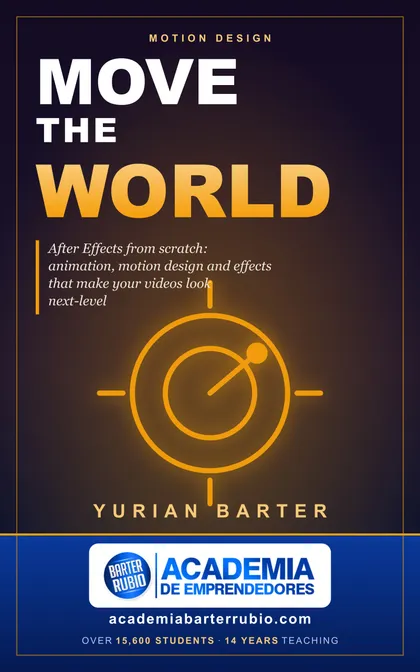
Read the whole book
"Move the World" in PDF: 21 chapters, each with a challenge. $8.99, delivered to your email.
Get the PDF · $8.99Or learn it free, with a certificate
Start the free Video Editing and Content Creation course in the Barter AI Academy app: short lessons, practice with an AI tutor and a certificate when you finish.
Start the free courseSee the free Video Editing and Content Creation course in United States →
Frequently asked questions
Is there a book about After Effects for beginners?
Yes. "Move the World" by Yurian Barter covers it in chapters 1, 2, 3. It is available in PDF for $8.99 and arrives by email.
Can I buy it from United States?
Yes. You pay $8.99 USD with PayPal or a debit or credit card. The PDF is delivered to your email right after the payment.
Is there a free way to learn After Effects for beginners?
Yes. The Barter AI Academy app has a free Video Editing and Content Creation course with a certificate. The book is the deeper, step-by-step version.
More guides from "Move the World"
After Effects Book PDF · After Effects Shortcuts · Keyframe Animation in After Effects · Null Object in After Effects · Text Animation in After Effects · Blend Modes in After Effects · Shape Layers in After Effects · Wiggle Expression After Effects · Rotoscoping and Chroma Key · 3D Camera in After Effects · Speed Graph and Easy Ease · Camera Tracking in After Effects · Motion Design for Beginners · Premiere Pro and After Effects Workflow
More books by Yurian Barter
You Are the Machine · Edit Like a Director · Mix Like a Producer · Ads That Sell · Google Finds You · Sell Without Pressure · Let Them Find You