Books › Move the World › Blend Modes in After Effects
Blend Modes in After Effects in South Africa
Readers in South Africa looking for blend modes in After Effects usually want something practical, not theory. These 3 chapters of "Move the World" go straight to the point: read the excerpts, try the challenge and decide if you want the whole book.
Overlays and Blend Modes: The Makeup of Video · Chapter 8
Have you ever watched a video where a ray of light suddenly sweeps across and the scene changes? Or a background of particles drifting gently behind a title? Those are overlays.
In this chapter: What Is an Overlay · The Immediate Problem · Blend Modes: Color Math · Coloring an Overlay with a Solid · Where to Find Overlays · How to Use Them with Judgment
Blend Modes: Color Math
A blend mode is a rule that decides how a layer mixes with the ones below it. You'll find it in the "Mode" column of the timeline (sometimes you have to turn the column on with the Toggle Switches / Modes button).
The most useful ones to start with:
- Screen: removes black and lets only the light parts through. Ideal for overlays on a black background: rays, sparks, fire, smoke, particles.
- Add: adds the layer's light. It's similar to Screen but more intense.
- Multiply: darkens; removes white and keeps black. Useful for shadows, paper textures, stains.
- Invert: inverts the resulting colors. Useful for turning a white overlay into a dark one.
Rule of thumb: black background and you want it gone → Screen or Add. White background → Multiply.
If an image has a black background, for example "wings on a black background" or "fire on a black background," Screen makes the black transparent. So even if the program doesn't come with exactly what you imagine, you can search the internet for images with black backgrounds and use them with this trick. The limit is your imagination.
Read the full guide to "Overlays and Blend Modes: The Makeup of Video" →
Overlays: Textures and Light Transitions · Chapter 16
A flat background is a dead background. A background with moving lights, rays, or grain has life. And you don't need to draw anything to get there: you use overlays.
In this chapter: What an overlay is · Where to find them · The magic blend mode: Screen · Transition with an overlay · Make it disappear with elegance · Watch out for overload
Transition with an overlay
Picture two photos: the first of a piano, the second of another object. You want to go from one to the other with a flash.
- Place the two photos back to back.
- On top, right at the point of the change, place a transition overlay.
- Switch it to Screen mode.
- Adjust the timing so the peak of the light matches the image change.
And just like that, you have a professional light transition.
Read the full guide to "Overlays: Textures and Light Transitions" →
Blur and Glow: Appear in Style · Chapter 15
A title that pops on screen is fine. A title that emerges, comes into focus and glows is a movie title. That effect looks complicated, but it's a combination of three properties you already know, plus a couple of effects. Let's build it step by step.
In this chapter: Step 1: the text · Step 2: opacity and position · Step 3: Gaussian Blur · Step 4: glow · The order of effects matters · A quality detail · Anchor it all to a guide
Step 4: glow
Find Glow. Apply it to the text. Play with:
- Glow Radius: how far the light spreads.
- Glow Intensity: how bright it shines.
- Glow Threshold: which parts glow.
A subtle glow gives a cinematic feel. An exaggerated one looks like a carnival sign. Less is more.
Read the full guide to "Blur and Glow: Appear in Style" →
Your challenge for today
Download two overlays (from a licensed source): one texture and one transition. Place them over a color background with your title. Apply Screen to the first one. For the second, put a solid on top set to Multiply, in a color that matches. Compare three different colors and keep the best one.
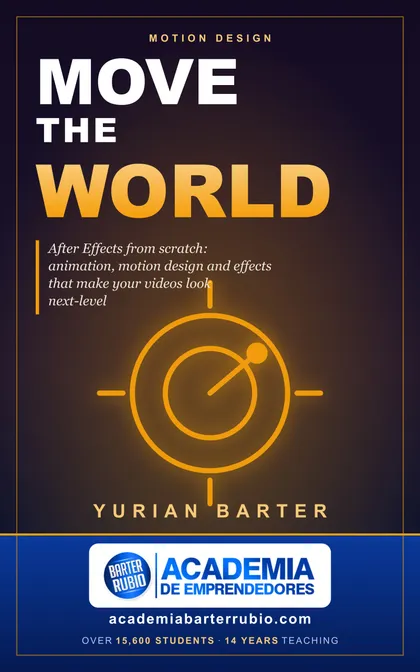
Read the whole book
"Move the World" in PDF: 21 chapters, each with a challenge. $8.99, delivered to your email (charged in USD; your bank converts it to rand).
Get the PDF · $8.99Or learn it free, with a certificate
Start the free Video Editing and Content Creation course in the Barter AI Academy app: short lessons, practice with an AI tutor and a certificate when you finish.
Start the free courseSee the free Video Editing and Content Creation course in South Africa →
Frequently asked questions
Is there a book about blend modes in After Effects?
Yes. "Move the World" by Yurian Barter covers it in chapters 8, 16, 15. It is available in PDF for $8.99 and arrives by email.
Can I buy it from South Africa?
Yes. You pay $8.99 USD with PayPal or a debit or credit card; your bank converts the amount to rand. The PDF is delivered to your email right after the payment.
Is there a free way to learn blend modes in After Effects?
Yes. The Barter AI Academy app has a free Video Editing and Content Creation course with a certificate. The book is the deeper, step-by-step version.
More guides from "Move the World"
After Effects Book PDF · After Effects for Beginners · After Effects Shortcuts · Keyframe Animation in After Effects · Null Object in After Effects · Text Animation in After Effects · Shape Layers in After Effects · Wiggle Expression After Effects · Rotoscoping and Chroma Key · 3D Camera in After Effects · Speed Graph and Easy Ease · Camera Tracking in After Effects · Motion Design for Beginners · Premiere Pro and After Effects Workflow
More books by Yurian Barter
You Are the Machine · Edit Like a Director · Mix Like a Producer · Ads That Sell · Google Finds You · Sell Without Pressure · Let Them Find You