Books › Edit Like a Director › Premiere Pro for Beginners
Premiere Pro for Beginners in Canada
Premiere Pro for beginners is one of the topics Yurian Barter covers in "Edit Like a Director". Below are the 3 chapters that matter most for it, with a real excerpt from each, so you can start applying it in Canada today.
Open Premiere Without Fear · Chapter 6
The first time you open Premiere Pro, it feels like they shoved you into an airplane cockpit. Panels everywhere. Buttons with weird symbols. Colored lines. Breathe. All of it has a logic, and in this chapter you're going to understand it.
In this chapter: Where to Install It and How to Get It · Workspaces · Your First Step: Import · Source Monitor and Program Monitor: Don't Mix Them Up · The Moment the Sequence Is Born · A Mistake Everyone Makes Once
Your First Step: Import
In an editing program you always start the same way: you bring in your materials. Videos, photos, music.
In the Project panel (usually at the bottom left) you'll see a message: "Import media to start." You have two ways to do it:
- Double-click that empty space and choose your files.
- Drag them from a folder on your computer into the panel.
They're in. And notice something important: they weren't copied. Premiere only links to them. If you later move or delete the original folder, the program will show them as "offline" and you'll have to locate them again. Keep your files in a tidy folder, and don't move it.
Read the full guide to "Open Premiere Without Fear" →
In Points, Out Points, and Markers: Don't Drag Everything In · Chapter 7
A 28-minute video. Out of all that footage, you only need two minutes. What do you do? The amateur drags all 28 minutes onto the timeline and starts cutting everywhere, and gets lost. The editor with a method does something else: marks exactly the piece they want and brings in only that.
In this chapter: In Point and Out Point · Go to In Point, Go to Out Point · With Audio or Without Audio? · Markers: Notes for Tomorrow's You · The Magic Duration
Markers: Notes for Tomorrow's You
This is my favorite trick for big projects.
Imagine you're watching all your footage and thinking: "I want to put an effect here," "This needs a transition," "The music has to change here." Don't do it now; keep watching the rest. But leave yourself a note.
Press M and a marker appears at the top, on the time ruler. Double-click it and type a name, a comment, and if you want, change its color.
Tomorrow, or next week, when you come back to your project, you won't have to remember anything: the markers tell you. That gives you huge freedom: you don't edit afraid of forgetting.
To remove one, right-click and choose "Clear Selected Marker," or "Clear All Markers."
Read the full guide to "In Points, Out Points, and Markers: Don't Drag Everything In" →
The Timeline and Its Tracks · Chapter 8
The timeline is the stage where everything happens. And if you understand its tracks, you understand Premiere.
In this chapter: Two Worlds: What You See and What You Hear · Who's the Boss: The Top Track · Adding More Tracks · The Lock · The Eye (Toggle Track Output) · M and S: Mute and Solo · The Audio Meter · Voice-Over
The Eye (Toggle Track Output)
Some people call it the "little clock," others the "little eye." It lets you turn a track on or off without deleting anything.
Example: you have a photo of a piano covering your video, and you want to see what's underneath. Do you delete the photo? No. You turn off the eye on that track. The photo is still there, it just isn't displayed. When you finish checking, you turn it back on.
Read the full guide to "The Timeline and Its Tracks" →
Your challenge for today
Import your three videos. Double-click them one by one and watch them in the previewer. Then drag one to the timeline and see how the screen changes. After that, on purpose, delete the sequence from the Project panel… and bring it back with Ctrl+Z. That's how you lose the fear.
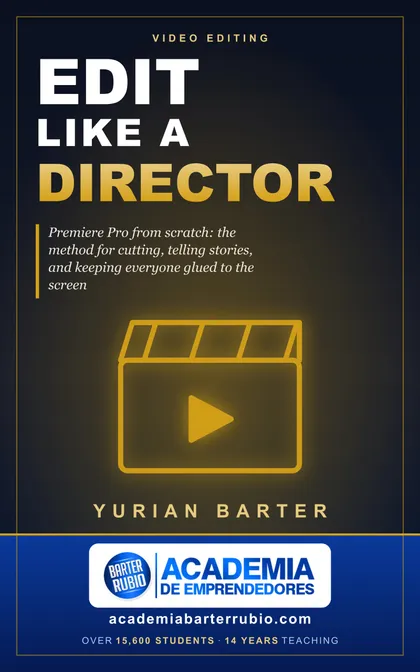
Read the whole book
"Edit Like a Director" in PDF: 17 chapters, each with a challenge. $8.99, delivered to your email (charged in USD; your bank converts it to Canadian dollars).
Get the PDF · $8.99Or learn it free, with a certificate
Start the free Video Editing and Content Creation course in the Barter AI Academy app: short lessons, practice with an AI tutor and a certificate when you finish.
Start the free courseSee the free Video Editing and Content Creation course in Canada →
Frequently asked questions
Is there a book about Premiere Pro for beginners?
Yes. "Edit Like a Director" by Yurian Barter covers it in chapters 6, 7, 8. It is available in PDF for $8.99 and arrives by email.
Can I buy it from Canada?
Yes. You pay $8.99 USD with PayPal or a debit or credit card; your bank converts the amount to Canadian dollars. The PDF is delivered to your email right after the payment.
Is there a free way to learn Premiere Pro for beginners?
Yes. The Barter AI Academy app has a free Video Editing and Content Creation course with a certificate. The book is the deeper, step-by-step version.
More guides from "Edit Like a Director"
Video Editing Book PDF · Premiere Pro Shortcuts · Types of Camera Shots · Video Editing for Beginners · Continuity Editing · Pacing in Video Editing · Keyframes in Premiere Pro · How to Write a Video Script · How to Clean Audio in Premiere Pro · Sound Design for Video · 180 Degree Rule in Editing · Film Editing Techniques · Composition in Video · Learn Video Editing Step By Step
More books by Yurian Barter
You Are the Machine · Move the World · Mix Like a Producer · Ads That Sell · Google Finds You · Sell Without Pressure · Let Them Find You