Practical Manual · In South Africa

Excel Manual in PDF (Advanced Level) to Study from South Africa

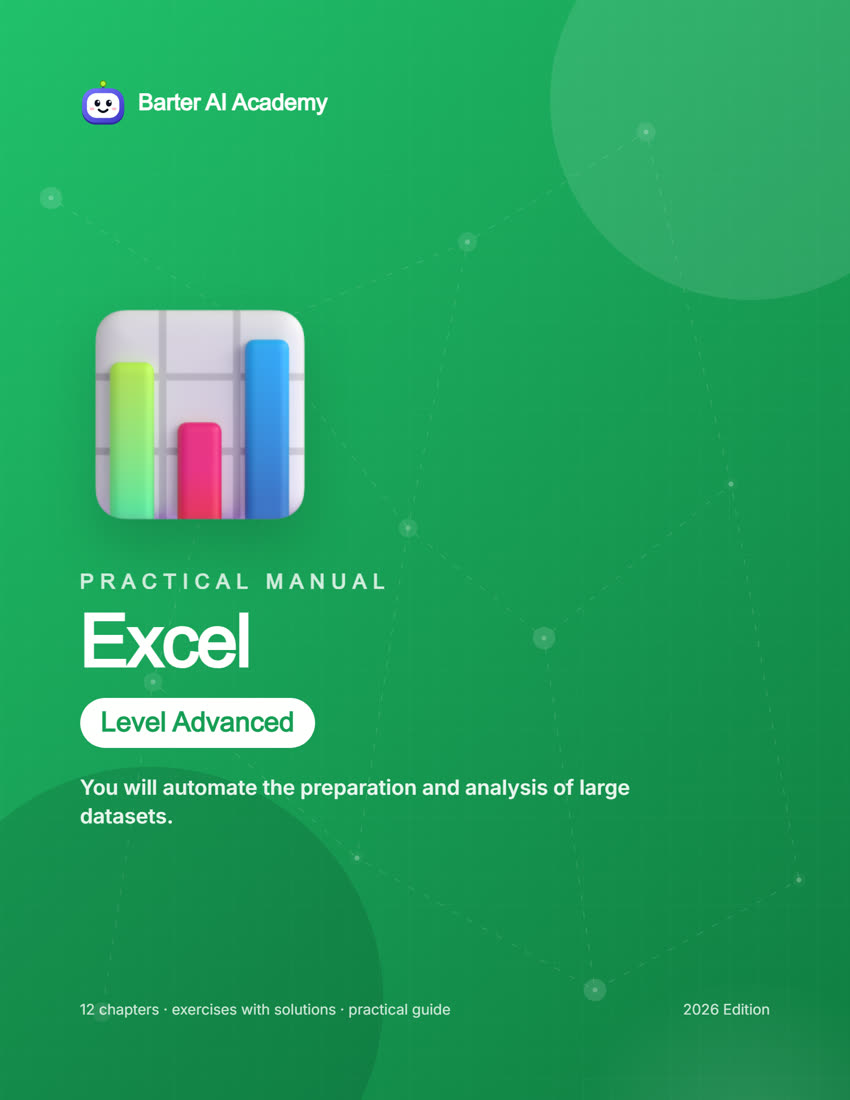
This Excel manual (Advanced Level) brings together 12 chapters with examples, exercises and tasks so you can apply what you learn in South Africa from day one.

Buy the manual · 7.99 USD

Excel Manual · Advanced Level (PDF)

Everything is online: download it in seconds from South Africa and pay in US dollars with PayPal or card.

Free sample

Chapter 5: Import Data from Multiple Sources

🎯 Import data into Excel from a CSV file, a folder, another workbook, and a web page using Power Query, and save each source as a query ready to transform.

Stop copying and pasting. Power Query connects to your data wherever it lives and remembers how to bring it in.

Key ideas

  • A query remembers where the data comes from and every step applied, which is why it can run again when you refresh.
  • Power Query reads the source without changing it. Transformations are saved in the query, not in the original file.
  • Each source type has its own connector on the Data tab.
  • Transform Data opens the Power Query Editor, where you clean the data before loading it.
What's inside

Part 1 · PivotTables

  1. 01Create Pivot TablesCreate a pivot table from an Excel table, drag fields into Rows, Columns, Values, and Filters, and change how the data is summarized to answer business questions.
  2. 02Calculated fieldsCreate a calculated field in a PivotTable to get margins, average prices, unit costs, and commissions without touching the original data, and know when its limits call for a different solution.
  3. 03Slicers and TimelinesYou'll be able to add slicers and timelines to a PivotTable, connect them to multiple tables, and build a user-friendly filter panel.
  4. 04PivotChartsCreate a PivotChart from a PivotTable, choose the right chart type, and connect it to slicers to explore data visually.

Part 2 · Power Query

  1. 05Import Data from Multiple SourcesImport data into Excel from a CSV file, a folder, another workbook, and a web page using Power Query, and save each source as a query ready to transform.
  2. 06Transform and CleanApply the most-used transformations in the Power Query Editor (change types, trim, split, replace, remove duplicates, blank rows, unpivot) and understand why each step is recorded and repeats automatically.
  3. 07Append and Merge QueriesTell when to append and when to merge queries in Power Query, and apply each operation with the correct join type.
  4. 08Update with One ClickSet up a Power Query so the entire report refreshes with one click (or automatically when the file opens), and know what to do when the refresh fails.

Part 3 · Models

  1. 09Data Model and RelationshipsYou'll be able to create a Data Model in Excel, relate several tables through a key column, and build a PivotTable that uses fields from all of them without VLOOKUP.
  2. 10Introduction to DAXWrite your first DAX measures (SUM, CALCULATE, and DIVIDE) in Power Pivot and understand why a measure is different from a calculated column.
  3. 11Scenarios and Goal SeekYou'll be able to compare several scenarios of a model with Scenario Manager and a data table, and use Goal Seek to solve for the value you need to reach.
  4. 12Dynamic Array FunctionsUse FILTER, SORT, UNIQUE, SEQUENCE, and SORTBY to create lists and reports that update automatically, and close the level by combining Power Query, PivotTables, and dynamic arrays in a complete analysis.

Buy the manual · 7.99 USD

Practice it for free in the app

This manual has an interactive version in Barter AI Academy: lessons with challenges, an AI tutor that answers you 24/7, and a certificate. The first 5 Excel lessons are free.

Start for free →

Other cities in South Africa

Other levels in your country

See all manuals →