Practical Manual · In South Africa

Learn Excel in Bloemfontein: Practical PDF Manual

Learning excel from Bloemfontein no longer depends on class schedules. With this PDF manual you move forward whenever you want, and by the end you will build organized spreadsheets with basic formulas and no errors.
Buy the manual · 7.99 USD

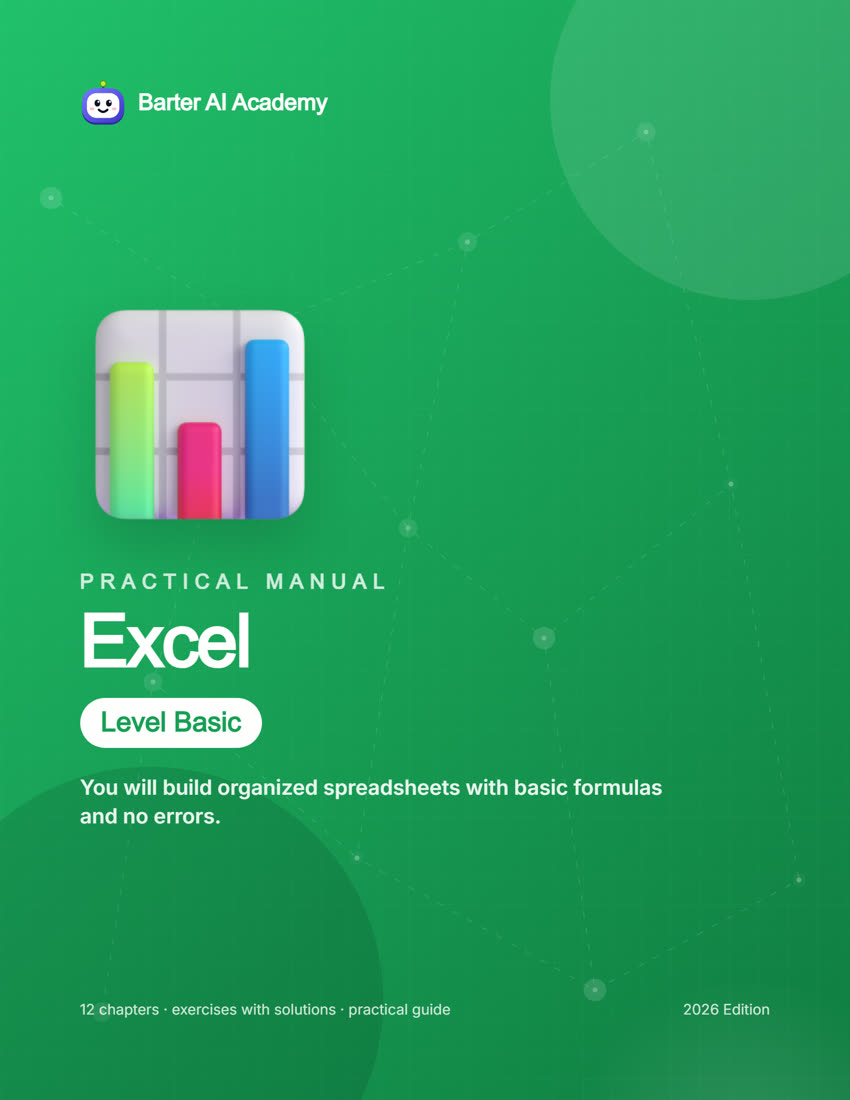
Excel Manual · Basic Level (PDF)

Everything is online: download it in seconds from Bloemfontein and pay in US dollars with PayPal or card.

Free sample

Chapter 5: Formulas and Operators

🎯 Write basic Excel formulas with the = sign, use cell references and operators, and predict the result while following the order of operations.

This is where Excel stops being a pretty table and becomes a calculator that updates itself.

Key ideas

  • The = sign tells Excel that what follows is a calculation and not text.
  • Without the = sign, Excel treats the entry as text and displays 10+5 literally.
  • The + adds, the asterisk multiplies, the forward slash divides, and the ^ raises to a power.
  • The multiplication operator in Excel is the asterisk (*).

What's inside

Part 1 · First Steps

  1. 01The Excel InterfaceRecognize the main parts of the Excel interface (ribbon, Name Box, formula bar, sheet and tabs) and move between them with confidence.
  2. 02Cells, Rows, and ColumnsMove around an Excel sheet with confidence: identify cells, rows, and columns, select ranges, and edit data using basic shortcuts.
  3. 03Data TypesTell apart Excel's data types (number, text, date, logical, and error), recognize them by their alignment, and avoid letting a mistyped value break your calculations.
  4. 04Number and Date FormatsApply number, currency, percentage, and date formats to your cells so the data is easy to read without changing its actual value.

Part 2 · Formulas

  1. 05Formulas and OperatorsWrite basic Excel formulas with the = sign, use cell references and operators, and predict the result while following the order of operations.
  2. 06SUM, AVERAGE, MIN, and MAXUse SUM, AVERAGE, MIN, and MAX to summarize columns of numbers in seconds, selecting ranges correctly and avoiding common errors.
  3. 07Relative and Absolute ReferencesCopy a formula to other cells and control which references move and which stay fixed using the $ symbol and the F4 key.
  4. 08Common Errors and How to Fix ThemRecognize the most common Excel errors (#DIV/0!, #VALUE!, #REF!, #NAME?, and #N/A), tell them apart from the narrow column warning (#####), and fix them step by step.

Part 3 · Organizing

  1. 09Sort and FilterSort and filter a data list in Excel or Google Sheets to quickly find the information you need, without breaking your records.
  2. 10Excel TablesConvert a data range into an Excel Table and take advantage of its benefits: banded rows, automatic filters, formulas with column names, and automatic expansion.
  3. 11Conditional FormattingApply conditional formatting so Excel automatically highlights important data: high or low values, duplicates, overdue dates, and rules using formulas.
  4. 12Print and ShareSet up an Excel sheet to print well and share it securely, and wrap up the Basic level with a complete expense tracking sheet.

Buy the manual · 7.99 USD

Practice it for free in the app

This manual has an interactive version in Barter AI Academy: lessons with challenges, an AI tutor that answers you 24/7, and a certificate. The first 5 Excel lessons are free.

Start for free →

Other cities in South Africa

Other levels in your country

See all manuals →